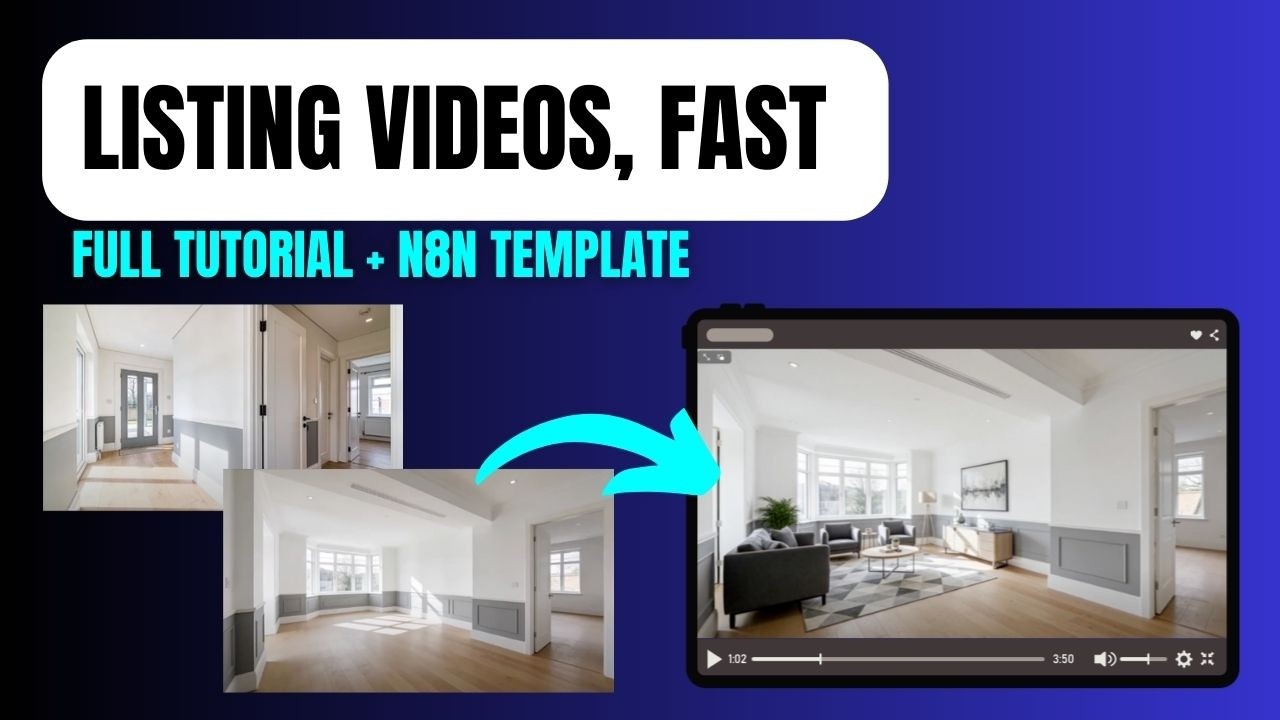
Build an Automated AI Property Tour System with n8n
A professional narrated property walkthrough used to mean hiring a videographer, a voice artist, and an editor — or recording it yourself on a phone and hoping for the best. Neither option scales.
This three-part n8n workflow changes that. Drop in empty property photos and a listing description. What comes out is a fully narrated video tour: rooms staged with AI-generated furniture, animated into video clips, scored with a professional-sounding voiceover written from your own listing copy. The whole thing runs automatically once it’s set up.
This post covers all three parts of the system in one place — what each workflow does, how they connect, and what you need to build them. Each video is embedded below in order.
What the Full System Produces
To set expectations clearly: here’s the complete input and output.
Input: Empty property photos + property name + description + location + sale or rent status
Output: A narrated walkthrough video — staged rooms brought to life as short animated clips, all merged into one continuous video with an AI voiceover laid on top
The three workflows build on each other:
- Part 1 — stages photos and creates a silent animated video
- Part 2 — generates a voiceover and adds it to a video
- Part 3 — combines both into a single end-to-end pipeline with one form trigger
Part 1: Staging Empty Rooms and Creating the Silent Video
Empty rooms photograph badly. Buyers struggle to imagine the space. This first workflow takes the bare room photos and uses AI to furnish them — matching the existing colour scheme and architectural style — then animates each staged image into a five-second video clip, and merges all the clips into one silent walkthrough.
The workflow steps:
1. Form submission The workflow is triggered by an n8n form collecting the property name and the room photos as file uploads. As many images as you like — the workflow loops through them one by one.
2. AI room staging (Google Gemini) Each image passes through a Google Gemini image-to-image node. The prompt instructs it to add appropriate modern UK-style staging furniture while keeping the room’s existing colour scheme, wall colours, and structure unchanged. The staging prompt is fully customisable — contemporary, period-style, minimalist, whatever fits the property.
3. Upload staged images to Cloudinary The staged images are binary data at this point. Before they can be passed to video generation models, they need a public URL. Each staged image is uploaded to Cloudinary and the returned URL is captured for the next step. (This is the same URL requirement covered in the AI video clip merger workflow — most AI APIs need a URL, not binary data.)
4. Generate animation prompts (OpenAI) For each staged image, an OpenAI node analyses the room and writes a short five-second animation prompt — something like “begin with a gentle dolly in from the hallway towards the seating area, maintaining focus on the window.” The prompt is tailored to what’s actually in each image rather than using a generic instruction for every room.
5. Animate each image (Kling via Fal AI) The animation prompt and Cloudinary URL are sent to Fal AI, which routes the request to the Kling video model (v2.1). Kling takes the still image and the prompt and outputs a five-second video clip. Because this takes time, a polling loop checks the job status every 60 seconds until it’s complete.
6. Merge all clips (FFmpeg via Fal AI) Once every image has been animated, all the clip URLs are combined into an array and sent to Fal AI’s FFmpeg endpoint — the same merge approach covered in detail in the video clip merger post. The output is one continuous silent video.
7. Save to data table The final video URL and property name are written to an n8n data table. From here you could email the link, post it to Slack, or pass it directly into Part 2.
Part 2: Generating the Voiceover and Adding It to the Video
Part 2 takes any silent property video — whether it came from Part 1 or was recorded on a phone — and adds a professionally voiced narration generated from the listing description.
The workflow steps:
1. Form submission A new form collects the property description, location, listing type (sale or rent), and the video URL. If using Part 1’s output, paste the final video URL here. If using a phone recording hosted on Google Drive, the workflow includes a code node that reformats Google Drive’s share link into a direct URL the API can use.
2. Write the voiceover script (OpenAI agent) An AI agent receives the property description, location, and listing type as dynamic values and writes a narration script. The system prompt defines the tone — professional, warm, upbeat — and is fully customisable. The script length is calibrated to match the video duration.
3. Generate the voiceover (11 Labs via Fal AI) The script is sent to Fal AI, which calls 11 Labs to generate the audio. 11 Labs has hundreds of voices — find one that suits the property type or brand, copy the Voice ID from their website, and paste it into the workflow. A polling loop handles the processing time.
4. Merge audio and video (FFmpeg via Fal AI) With both the audio URL and the video URL available, a final FFmpeg request merges them. The output is the completed narrated walkthrough.
5. Delivery The workflow emails the final video URL via Gmail. You can also write it to a data table, post it to a Slack channel, or trigger any other downstream action from here.
Part 3: The Combined Workflow
Part 3 merges both workflows into a single pipeline. One form. One trigger. Photos and a description go in — a narrated walkthrough comes out.
The combined form collects everything at once: property photos, property name, description, location, and listing type. From there the workflow runs Part 1 (staging → animation → silent video merge), then pipes the silent video URL directly into Part 2 (script → voiceover → final merge) without any manual handoff.
The output data table captures everything: property name, description, the silent video URL, the audio file, and the final narrated video URL. If you want the script included, add a column and drag the AI agent output across — it’s the same drag-and-drop approach as the rest of the workflow.
To set this up: download the Part 3 template, follow the credential setup steps from Parts 1 and 2, create the data table with the appropriate columns, and the workflow is ready to run.
Tools You’ll Need
| Tool | Purpose | Notes |
|---|---|---|
| n8n | Workflow automation | Self-hosted or cloud |
| OpenAI (GPT-4) | Script writing, animation prompts | API key required |
| Fal AI | Model aggregator (Kling, 11 Labs, FFmpeg) | Top up with credits — replaces multiple subscriptions |
| Google Gemini | AI image staging | Google API credential required |
| Cloudinary | Image hosting (binary → URL) | Free tier sufficient to start |
| Gmail | Delivery | Google credential required |
Fal AI is worth calling out specifically. Rather than separate subscriptions to Kling, 11 Labs, and FFmpeg, one Fal AI account with credits covers all three. The API documentation is well written and all the request formats shown in the videos are taken directly from it.
Final Thoughts
For estate agents, this workflow produces a marketing asset that most competitors aren’t creating — and it runs from a form submission with no specialist skills required on their end. A junior member of staff fills in the form after viewing the property; the narrated video arrives in their inbox.
For automation builders, this is a high-value, demonstrable service. The output is a video the client can see and share immediately, which makes it far easier to justify than backend automations where the value is less visible.
The templates for all three workflows are linked in each video description if you want a faster starting point than building from scratch.