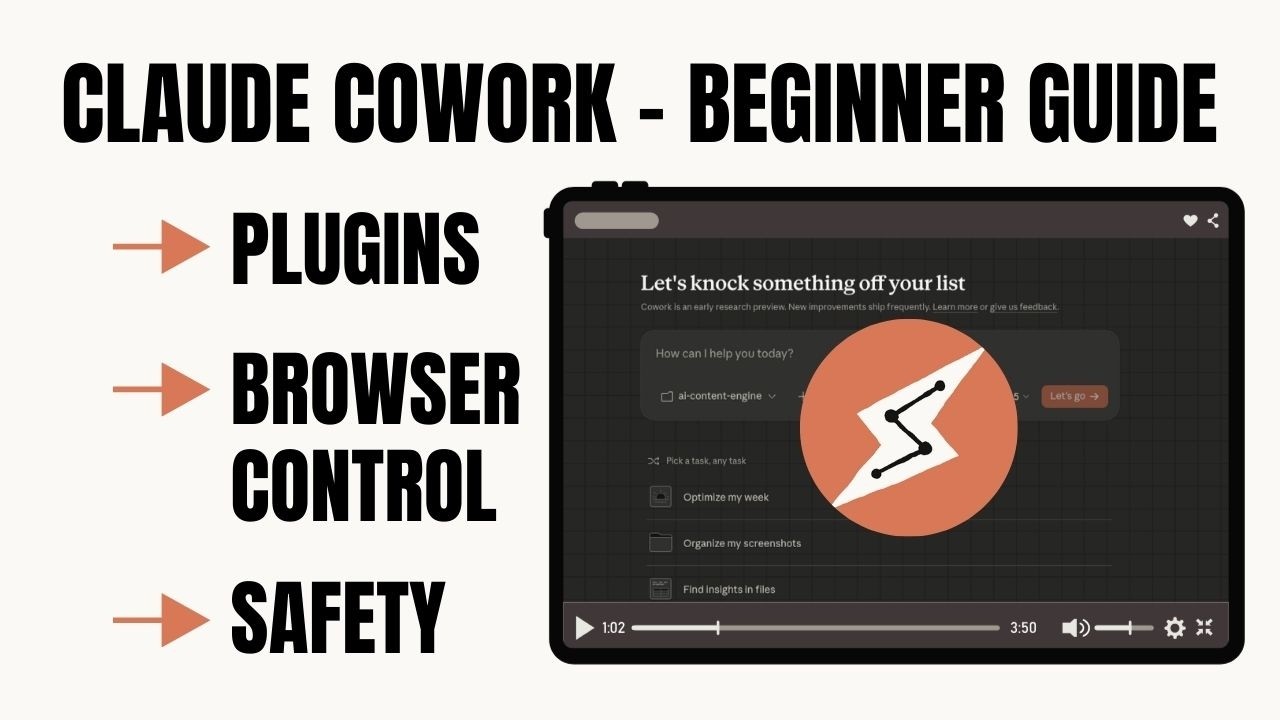
Claude Cowork: Full Walkthrough — Plugins, Skills, and Safety
Claude Cowork is one of the most underrated tools Anthropic has released. It’s in research preview, it hasn’t been out long, and most people who’ve heard of it either dismiss it as “Claude with extra steps” or avoid it because they’ve seen safety concerns mentioned in communities.
Both reactions are understandable. Both miss the point.
This is the full walkthrough — what it is, where it came from, how plugins and skills work, what the Chrome extension actually does, and an honest look at the safety risks and what you should actually do about them.
Where Cowork Came From
The origin story matters because it explains what Cowork actually is.
When Anthropic built Claude Code — their agentic coding tool — they noticed something unexpected. Developers weren’t just using it for coding. They were using it for writing reports, organising files, doing research, building spreadsheets. All kinds of knowledge work that had nothing to do with code.
Anthropic looked at this and made a decision: the agentic architecture they’d built for developers was genuinely useful for anyone doing complex knowledge work. So they took the same engine, removed the requirement to open a terminal, and packaged it as Claude Cowork.
That’s the key distinction. Cowork isn’t a chatbot with a nicer interface. It’s the same architecture that makes Claude Code capable of running multi-step autonomous tasks — just accessible without any technical setup.
It’s available on all paid Claude plans (Pro, Max, Team, Enterprise) through the Claude desktop app on Mac or Windows.
What Cowork Can Actually Do
The gap between regular Claude chat and Cowork isn’t about the quality of the answers. It’s about the type of output and the scope of the task.
In chat, you describe what you want and Claude gives you text. You then go and do something with that text.
In Cowork, you describe an outcome. Claude breaks it into sub-tasks, coordinates them — in parallel if needed — and delivers finished files. Not text you have to format. Actual files:
- Excel spreadsheets with working formulas and conditional formatting
- PowerPoint presentations with structure and layout
- Organised folder systems
- Properly formatted Word documents
You point it at a folder on your machine, it gets read and write access to that folder, and it works directly inside it. No uploading. No downloading. No copy-pasting. If you’ve already set up a project folder and CLAUDE.md file (covered in the previous episode), Cowork reads that context automatically before it starts.
Plugins: Specialist Context on Demand
Anthropic’s plugin system is the fastest way to extend what Cowork can do for specific job functions.
Plugins are bundled sets of capabilities — commands, context, and connectors — tailored to a particular role. Think of them as specialist assistants you can drop into a session. You install them from the plugins panel in the desktop app, and they stay available for future sessions.
The current official plugins cover: marketing, customer support, bio research, finance, enterprise research, data, legal, product management, productivity, and sales.
Installing a plugin does two things. First, it gives Claude the context of that specialist — so the marketing plugin makes Claude think like a marketing professional rather than a generic assistant when you’re working on campaigns. Second, it adds slash commands to Cowork. Type / and you’ll see the available commands for that plugin — things like drafting content, auditing a page, reviewing brand consistency.
Plugins also have connectors — the ability to link third-party tools to improve results. The marketing plugin can connect to Ahrefs for SEO data. The customer support plugin connects to Slack, HubSpot, and Notion. This is where Cowork starts to feel less like a productivity tool and more like a working system.
If you want to build something specific to your business — your own commands, your own context — Anthropic ships a Plugin Creator plugin. Describe what you want, and Claude works with you to build it.
Skills: The Open Standard
Alongside plugins, there’s a parallel ecosystem built around agent skills.
The skills format — a folder structure with a skills.md file — was originally developed by Anthropic for Claude Code. It’s a detailed procedural brief: gives an agent expert-level context on exactly how to perform a specific task. Anthropic released it as an open standard, and other tools are adopting it. The goal is a skill you build once that works across multiple agent products.
In Cowork, skills live in Settings → Cowork. You can add skills there, either by writing the instruction, creating it with Claude, or uploading a file.
The public skill library is on GitHub under Anthropic’s repository, and the full open specification is at agentskills.io if you want to build your own.
One thing worth noting for anyone who’s also been looking at Claude Code: the skills architecture is similar at the base level, but the way you access, deploy, and interface with them is quite different between Code and Cowork. A dedicated episode on Claude Code skills is coming — for now, just be aware they’re not interchangeable.
Claude in Chrome: The Part That Changes Research
The Chrome extension is the part of this ecosystem that takes the most explaining — because seeing it is what makes it click.
Once installed, you get a side panel in Chrome. Claude can see what’s on your screen and interact with websites on your behalf. At each step it tells you what it plans to do and asks for your approval before doing it. You can stop it at any time.
The practical result: you can give Cowork a research task and it’ll go out, browse through pages, pull the relevant information, synthesise it, and write it up into a formatted document — all without you copy-pasting anything.
When used alongside Cowork’s file access, this is genuinely different from anything that came before it. Browsing and file creation in the same task. Research a topic, pull information from multiple sources, produce a structured report, save it to your folder. Hands free.
It’s available on all paid plans and installs from the Chrome Web Store, connecting to your Claude account automatically.
Safety: The Honest Version
The concerns people raise about Cowork in communities are valid. They deserve a straight answer, not dismissal.
The main risk: prompt injection. When Claude is browsing the web or reading files on your behalf, a malicious website or document could contain hidden instructions — invisible text or encoded commands — designed to get Claude to do something you didn’t ask for. Extracting data, sending emails, making purchases.
Anthropic has been transparent about this. Their testing has reduced attack success rates to around 1% against their current test suite. That sounds small. But they themselves say the risk is not zero.
What Anthropic has built in: model training using reinforcement learning so Claude recognises and refuses malicious instructions even when they appear legitimate; scanning of untrusted content entering Claude’s context; granular permissions; site block lists for high-risk categories like banking and financial sites; and action confirmation for sensitive operations.
What you should do:
-
Create a dedicated Cowork folder — don’t point it at a folder containing financial documents, passwords, or sensitive client data. A clean working folder for Claude only.
-
Keep browse access to trusted sites — the default is intentionally restricted. Don’t extend it broadly.
-
Watch for scope creep — if Claude starts accessing files or sites you didn’t mention, stop it. The stop button is always there.
-
Use only verified plugins — stick to the official Anthropic plugin library and be cautious with third-party extensions.
-
Use a separate Chrome profile — create a Chrome profile without access to sensitive accounts (banking, healthcare, legal). Claude uses that profile, not your primary one.
If these precautions feel like too much for your situation, running Cowork in a secure hosted environment rather than on your local machine is a reasonable alternative — a future episode will cover that setup specifically.
What to Use It For
Once you’ve got the setup right, the use cases are broad:
Business owners: Anything that involves pulling information together and producing a formatted output. Expense reports from a folder of receipts. Market research compiled into client-ready PDFs. Project templates. File organisation.
Marketing: Install the marketing plugin, give Cowork a brief, and let it draft campaigns, plan content, and write copy. With Claude in Chrome it can research competitors at the same time.
Customer support: The customer support plugin combined with Cowork’s file access means Claude can reference your knowledge base, draft responses, and categorise tickets.
Research: Give it a topic, point it at documents or URLs, and let it synthesise everything into a structured report with headings, takeaways, and action items.
Productivity: Organise your downloads folder. Batch rename files. Create project templates. The tedious file management tasks that take an hour and involve zero thinking.
Final Thoughts
Cowork is in research preview. There are rough edges and the safety considerations are real. But the direction is clear: this is what it looks like when AI actually does work rather than just answers questions.
For business owners and knowledge workers who aren’t developers, it’s the closest thing to having an AI agent that handles the output end of a task — not just the thinking part.
The next episodes in this series cover building custom plugins and skills, and running Cowork in a secure hosted environment. Subscribe if you want to catch those.
Watch the full walkthrough here → https://youtu.be/xaNZIoQETWw