Merge AI Video Clips Automatically with n8n and FFmpeg
Most AI video models have a hard cap on clip length — eight seconds, ten seconds, fifteen at most. That’s useful for a short scene. It’s useless for a full video.
The workaround most people use is downloading clips manually and stitching them together in an editor. It works, but it’s slow and it puts a human in the middle of what should be an automated pipeline. This workflow removes that step entirely. Pass in a list of video URLs, and n8n hands them off to FFmpeg to merge into a single output — no editing software, no manual steps.
Why This Matters for AI Video Pipelines
If you’re generating videos with AI tools, you’ve almost certainly hit this problem. Text-to-video and image-to-video models — Veo, Kling, Runway, and most others — return short clips. To make anything longer than a few seconds, you need multiple scenes.
The manual approach is to generate each scene, download it, import it into an editor, and stitch them together. For one video, that’s manageable. For anything running at scale — batch content, automated social posts, client deliverables — it breaks the pipeline.
This workflow drops into any existing video generation setup. Generate your clips however you normally would, collect the output URLs, and feed them into this merger. One input, one merged video URL out the other end.
What the Workflow Does
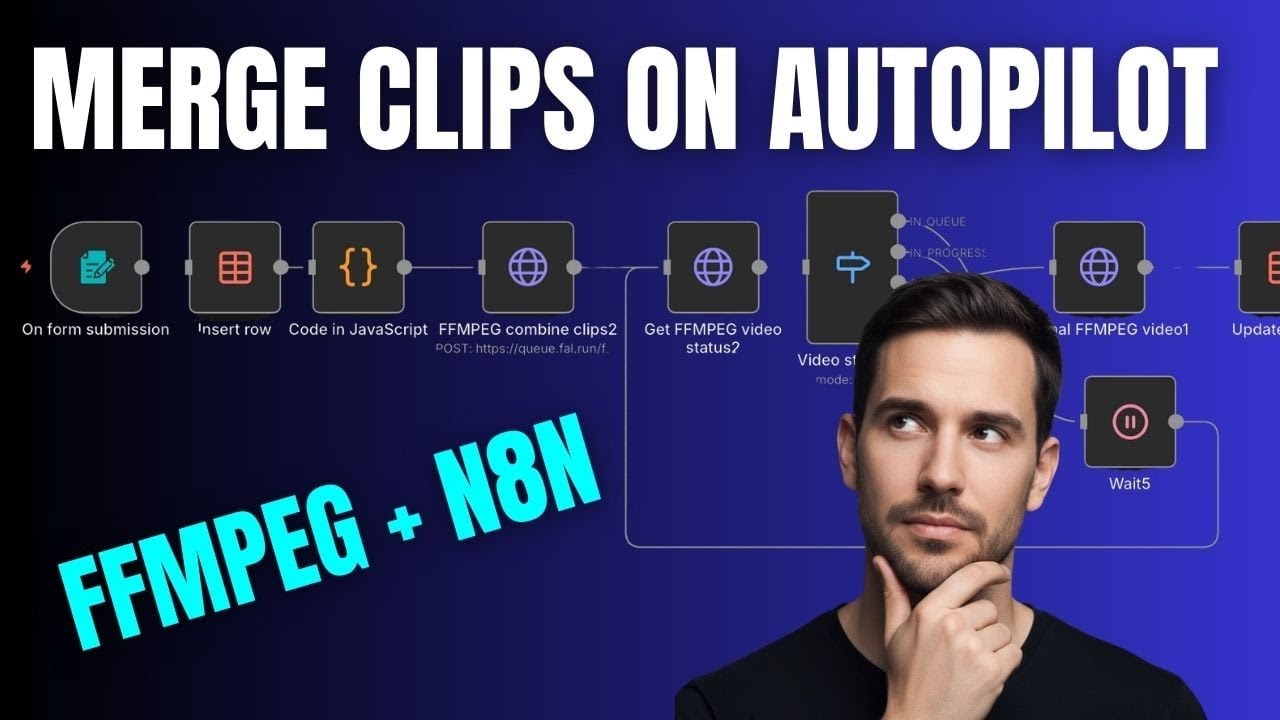
The flow runs as follows:
- Form submission — a list of video URLs (up to eight in this example, easily extended) comes in through an n8n form
- Data table — the URLs are stored in an n8n data table, which keeps a record of each job and gets updated with the final merged URL at the end
- Code node — extracts the video URL keys, sorts them numerically, and formats them into the array structure FFmpeg expects
- HTTP request (post) — sends the array to Fal AI’s FFmpeg endpoint to kick off the merge job
- Polling loop — a second HTTP request checks the job status every 15 seconds; if it’s still in queue or in progress, it loops back; when completed, it exits
- Get final video — retrieves the merged video URL from the completed job
- Update data table — writes the final URL back into the original row
From there the output URL can go anywhere — emailed to you, sent to Blotato for scheduling, passed into another workflow step.
The Key Nodes Explained
Code node This is the one node where you can’t just drag and drop. It extracts each video URL field from the form data, sorts them by number, and builds the array in the format Fal AI’s FFmpeg API requires. The full code is shown in the video — screenshot it or grab it from the template link in the video description.
HTTP request (post) Points to Fal AI’s combine/merge endpoint. Fal AI is an AI model aggregator — one account gives you access to a wide range of models including FFmpeg, without separate subscriptions for each. You’ll need an account, some credits (a small top-up goes a long way), and an API key. Add that as a generic credential type in n8n with a header auth setup.
The polling loop
The merge doesn’t happen instantly — longer clips or more scenes take more time. The wait node holds for 15 seconds, then the status check runs again. The switch node reads the status returned by Fal AI: in_queue and in_progress both route back to the wait node; completed exits to the final step. If there’s an error, the fallback path stops the loop rather than letting it run indefinitely.
n8n data tables Worth calling out separately — this workflow uses n8n’s built-in data tables instead of Google Sheets. It’s faster to set up (no Google Cloud auth required) and works well for storing job records within n8n itself. If your wider workflow already uses Google Sheets, you can swap it in without changing anything else.
URLs vs File Uploads
One thing that trips people up: most AI video platforms return a URL for their output, not a file. This workflow is built around that — it expects URLs as inputs, not binary files.
If you’re working with local files instead (videos you’ve exported from Descript, for example, or clips you’ve downloaded), you need to get them into a URL first. The simplest way is to upload them to a cloud storage service like Cloudinary — upload the file, copy the URL, and it works as an input here. A follow-up video covers that upload step specifically.
Final Thoughts
This workflow is most useful as a component inside a larger pipeline rather than as a standalone tool. If you’re generating multiple AI video scenes and want them combined automatically, drop this in after your generation step. It handles the stitching so you never have to open an editor.
The same pattern — post a job, poll for completion, retrieve the result — shows up in almost every AI API workflow. Once you’ve built it once, it’s straightforward to adapt for other tools that work the same way.
Watch the full build walkthrough here → https://youtu.be/8nky6GU24i8