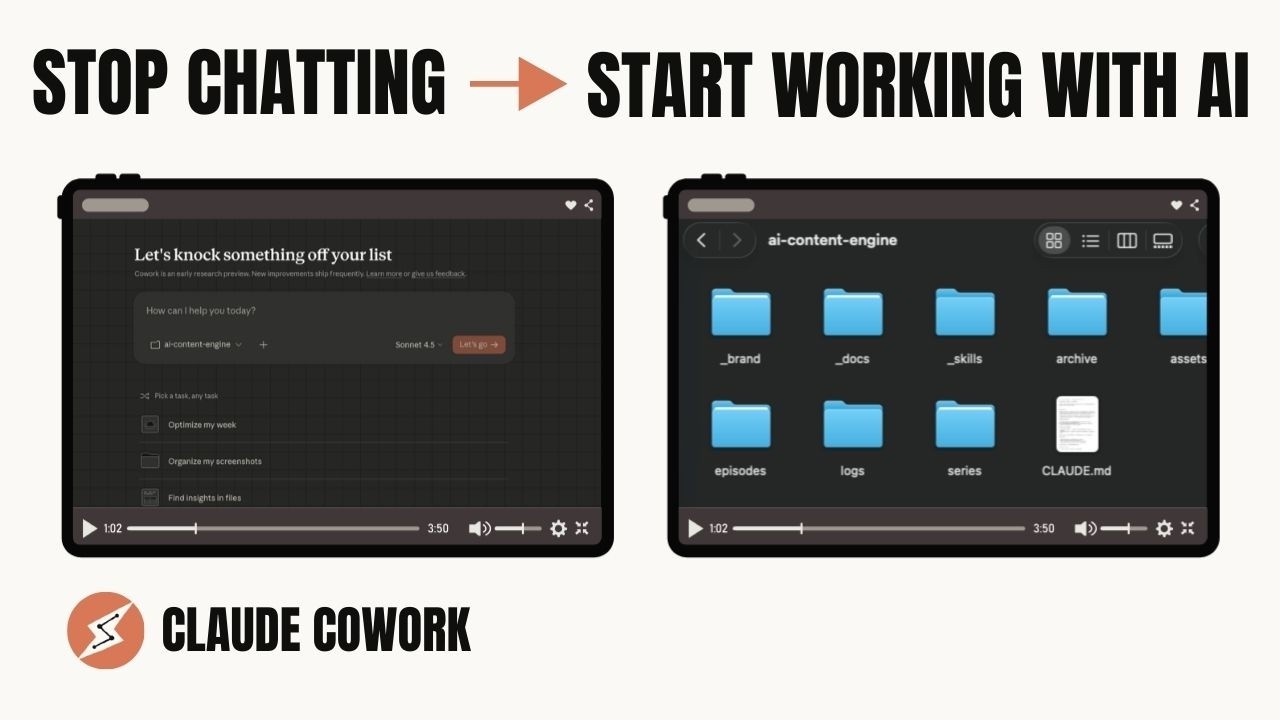
Stop Chatting With AI. Start Working With It.
Most people use Claude — or any AI — like a slightly smarter search engine. You ask it something. It gives you an answer. You copy the useful bit and move on. Next session, you start from scratch.
That works. It’s useful. But it’s not what these tools were actually built to do.
They were built to act — not just to answer. To read your files, create new ones, connect to your tools, and run a chain of tasks while you go and do something else. The difference between chatting to Claude and working with Claude is the difference between asking a colleague a question in the corridor and actually giving them a project to run.
This post walks through how to make that shift — starting with Claude Cowork and the one file that changes everything.
What Claude Cowork Is
Claude Cowork lives inside the Claude desktop app — free to download on Mac and Windows, though you’ll need a Pro plan (around $20/month) to access it. You can see it alongside Chat and Claude Code at the top of the app once it’s installed.
The setup is simple. You give Cowork a folder on your computer. That folder becomes its workspace — it can read files in there, create new ones, edit them, and organise them. It can’t touch anything outside that folder. That boundary is important: it keeps you in control of what Claude sees, and means that even if a task goes wrong, it can’t reach anything else on your machine.
Two things make Cowork different to regular chat:
1. It handles tasks, not just prompts. In a normal conversation, Claude responds to one prompt and it’s done. In Cowork, you describe an outcome. Claude makes a plan, works through it step by step, can run sub-agents in parallel if it needs to, and then delivers finished files.
2. You can walk away. That’s the one that changes how you think about your day. Set the task, go and do something else, come back when the work’s finished.
The File That Changes Everything
There’s one setup step that separates people who get consistently great results from AI from people who get generic ones. It’s a plain text file called CLAUDE.md.
This file sits in your project folder. Claude Cowork reads it automatically at the start of every session. Fill it in once — properly — and every task you run will be calibrated to your business without you having to re-explain anything.
Think of it as briefing a team member who never forgets. Your audience. Your tone. Your file conventions. Your current focus. All of it locked in from the first session.
Cowork has an equivalent for global instructions — the same concept applied across sessions. Set these once and they persist.
The template for this file is linked in the video description. It takes about 20 minutes to fill in. That 20 minutes pays back every single time you open a session.
If you’ve already seen how I’ve structured the research agent that plans this channel’s content or the thumbnail agent, this is the same system underneath — the CLAUDE.md file is what makes those agents work the way they do, every time, without needing to be re-explained.
The Live Demo: One Prompt, Complete Folder Structure
To show what this looks like in practice: I typed one prompt into Claude Cowork and pointed it at an empty folder.
What it built — without me touching anything — was a complete project folder structure: brand guidelines, tone of voice, audience definition, a series plan, a CLAUDE.md file, and a set of standing instructions. Eight folders. All populated with starter templates.
The prompt wasn’t long. What made it work was that Cowork had enough context to make decisions — it didn’t need to ask me what format to use or where to save things, because those rules were in the instructions.
That’s the practical test of whether your setup is working. If Claude keeps asking clarifying questions, your context isn’t complete enough. If it just works — makes reasonable decisions and produces finished files — you’ve got it right.
Setting Up Your Standing Instructions
Once the folder is created, there are a few things worth doing before you run any real tasks.
Standing instructions — set these in Cowork’s folder settings. Things like: always read CLAUDE.md before starting a task. Always read tone of voice and audience files. Never delete files — move to archive instead. These become the operating rules for every session in this folder.
Brand files — Cowork can actually help you write these. Rather than staring at a blank template, start a Cowork session and say “update the tone of voice file — ask me questions.” It’ll ask about content type, style preferences, what to avoid. Answer them, and it writes the file. Back and forth until it’s accurate. You end up with a document Claude wrote, in a format Claude can read, about how Claude should work for you.
What Comes Next
This is the foundation. Every agent, skill, and automated task you build from here sits on top of this setup.
The next step in this series is agent skills — reusable instructions for specific tasks like research, script drafting, thumbnail briefs, or publishing checklists. Build a skill once, run it whenever you need it, and Claude executes it the same way every time.
If you want to start building before the next episode, the AI operating system template pack is linked in the video description — a CLAUDE.md template and a folder structure template that work for any business or project.
Watch the full walkthrough here → https://youtu.be/jB4gzkdAMpw